How to use
Get started in just a few steps
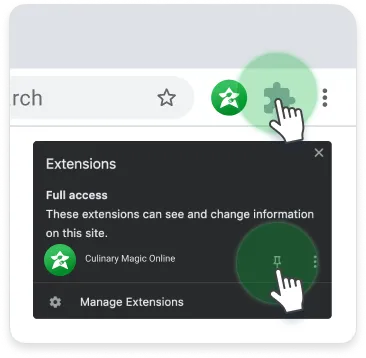
1. Pin the extension
Pin CulinaryMagicOnline to your browser by clicking the puzzle icon in the top right corner, then select the pin icon.
2. Activate the extension window
Click the floating action button on any website to open the extension.

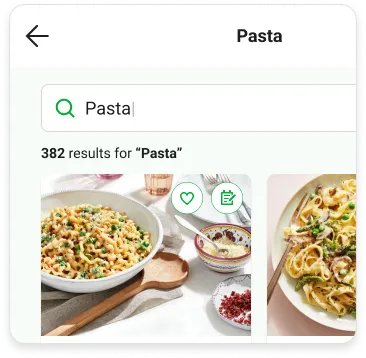
3. Browse thousands of delicious recipes
Start typing in a recipe and you'll see relevant options populate.
4. Filter by recipe
You can access filter options by clicking the icon. Filtering by recipe is the default.
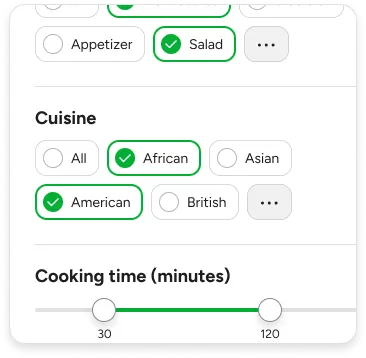

5. Filter by ingredient
You can filter recipes by typing the ingredient in the search field.
6. Save any recipe you like for later
Click on the icon to save the recipe for later.


7. Add recipes to your Weekly Meal Planner
Click on the icon to add recipe to your Weekly Meal Planner.
How it works?
Start using CulinaryMagicOnline with just one click!

1. Opening the Widget
Click the icon to access CulinaryMagicOnline.
2. Reactivating the Widget
Quickly enable the widget by clicking on the icon at the top right, then choose "Enable Everywhere"


3. Closing the Widget
Exit CulinaryMagicOnline by clicking the 'X' icon to close the widget.
4. Disable the Widget
To pause or deactivate the widget, click on the Settings icon to access a menu containing these options.